Tiny Text result
Instant · No sign-up
Instant · No sign-up
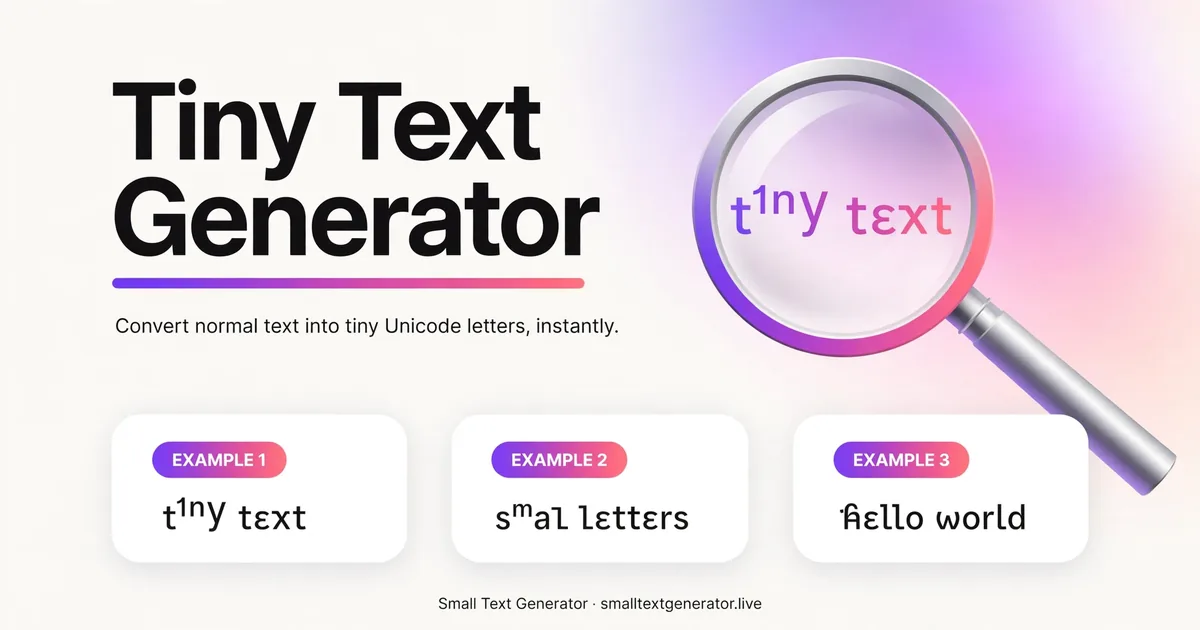
Shrink your text down using a set of compact Unicode characters — the same small-scale letterforms used for footnotes and exponents. Type below and copy the result, no font install or app needed.
A tiny text generator is an online tool that helps you turn normal text into text that looks small or decorative. It uses unicode symbols instead of installing a new font on your device. This text generator changes your standard text to special unicode text that works on most modern sites. You can copy the tiny text and use it in bios, captions, chats, or posts. If you want to change your text’s style fast and without more software, this is a good and easy tool to use.
A tiny text generator does more than just give you a fun look. The text generator lets you make small text that is easy to read and looks new and different. It works by using unicode symbols, so you can copy the tiny text into many sites or apps on the web.
You can use a tiny text font generator to make profiles, messages, or creative layouts stand out. It is good for adding small branding that gets noticed. Some people like simple text, while others want text that grabs people’s attention on public posts. The next parts will show you good ways to use tiny text and still keep your content easy to read.
Start by putting regular text in the text generator. The tiny text generator will change your text into unicode characters. These characters will look smaller than normal text. This is because the tool gives you converted text using plain unicode. It does not use images or special fonts. That makes it much easier to use the text on other apps or devices. So, you can move your tiny text wherever you want with no trouble.
For the best results on iOS, Android, and desktop, keep your phrase simple. Test the font style before you publish. Some font styles are used more on older systems. If a version looks strange, pick a cleaner tiny text option or use small caps.
Type in short, clear words first. Then, see how the converted text looks.
Copy the result text and try it in the app you want to use.
To help it show well across different platforms, pick unicode characters that most places support.
If you want your profile to get noticed, a text generator can help you make social media bios with little work. A small text or tiny text can add a fun feel to an instagram bio. It also makes your profile heading look neat. You can use a small text generator to give your display name a unique look.
This can also be used for discord usernames and other handles on social media platforms that let you put in special unicode symbols. A lot of these platforms come with just the basic text style. A different font style can help your name or tagline stand out on social media. You still need to make sure it is easy to read, so people can see it quickly.
Use tiny words for taglines, short labels, or separators in bios.
Try a subtle style for usernames instead of overly complex characters.
Preview first to make sure the text stays clear on mobile devices.
Small caps are good when you want your text to stand out in a clean way. A small caps text generator makes normal letters into small capital letters. These look like big letters but are smaller. This makes text like headings, names, and labels look neat in a professional document or online post.
This is good to use when bold text or italics may feel too strong. A font converter with small caps output gives you a balanced look. It works well for short parts, titles, or important terms. But, be aware that support can be different in tools like Google Docs and other word programs. You should always check the pasted results.
Use small caps text when you need short headings, labels, and to style names.
Try the pasted output in your document first before you use it in any important material.
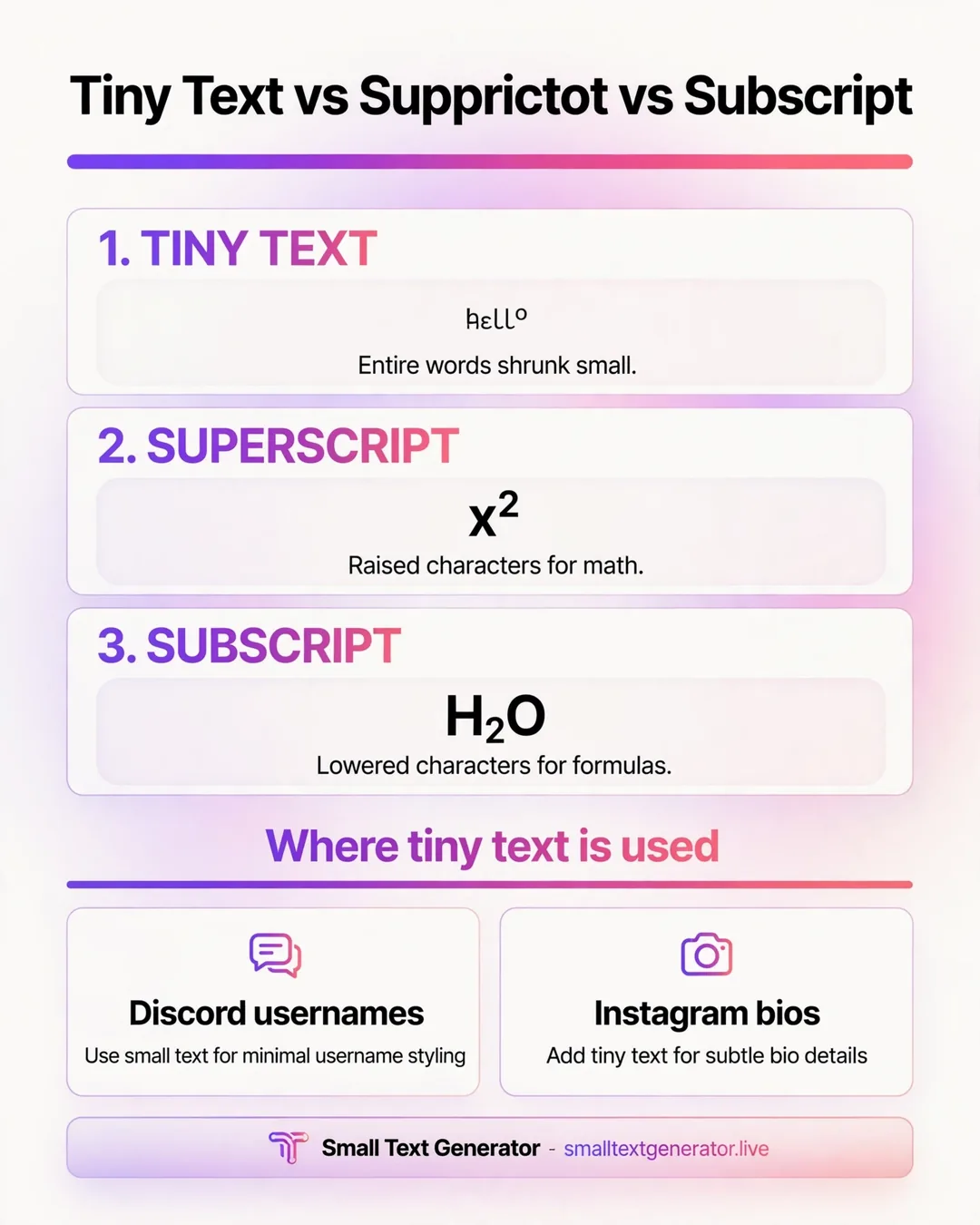
A tiny text generator is good for more than just making text look small. You can also use it to turn text into superscript characters or subscript characters. Superscript letters sit above the normal text line, while subscript letters drop below it. People use these text styles when they want to have a technical feel, write something for school, or just add something new to the text. A text generator helps you get these different text styles fast and easy.
The unicode standard has many matching unicode choices for these text forms. Because of that, generators can make them fast. You may see superscript text in formulas or notes. Subscript text often shows up in chemical names or tags. A few generators give you bubble text, text that is upside-down, or text that is written backwards. These are used for fun.
Pick superscript characters if you want text to look raised or for short, quick notes.
Go with subscript characters when text looks better sitting lower in the line.
Check both styles to see which one works best on your platform and looks clean.
Tiny text can help your chats feel more fun. It does not change what you say. A text generator that makes text tiny is used in chat apps. You can use it for your status, short replies, or little phrases that look cool. A tiny text generator is good for making your aesthetic bios stand out. Easy looks matter here.
Safety is mostly about the tool, not how text looks. Many web tools that handle plain unicode text in your browser are simple and easy to use. Most of them do not need any special software or extra set up. Still, it is best to use only trusted online tools. You should also never put any private or sensitive details in text boxes.
Use small text fonts when you write short messages, statuses, or notes on your profile.
To make discord messages easy to read, mix small text with normal text.
Small text can give more detail to digital art. It does not take over the main design. A tiny text generator lets you make labels, captions, decorative notes, and soft text layers that feel planned. The text generator does this with unicode symbols, so you can copy it fast into many of your creative projects.
In design projects, using small text in short phrases is often better than writing long paragraphs. You may see it in banners, sample profiles, or image ideas made for social media posts. Many people also mix small text with bubble text, bold text, and other types to help make things stand out.
Add tiny labels to visual ideas, headers, or side notes that stand out.
Mix small text and other unicode symbols to get a style that fits your design.
Test how easy it is to read before you finish your design.
A tiny letter generator lets you change your profile name with a few clicks. You do not need to download anything. Just type in your regular letters, choose a small font style, and copy it. After that, you can paste the text on supported social media platforms. This way, your name can look cleaner, more fun, or stand out in a crowded feed. Using a tiny letter generator is an easy way to make your name different on social media.
Short names are easy for people to read. If there is too much styling, the name can be hard to see. A text generator helps you try many styles fast. A tiny text generator is good for community sites, games, or your own brand. You can make a new look with it. This lets the name feel new, but people will still know what it is.
Use a short name for your profile. This helps the text to stay clear and easy to read.
Check how the styled name looks on desktop and mobile devices.
A good tiny text generator should be fast and easy to use. You just type your text, see the result right away, and copy what works for you. A text generator like this often gives you different styles, quick tiny text conversion, and lets you preview the text before you use it. A tiny text generator can help you change your text in no time.
Unicode support helps make everything work. This tool uses Unicode, not font files that are on your computer. This is why the text you make can move to many apps and operating systems with no problem. Because of this, these features are the most important to look at when you choose a tool you'd like to use often.
One thing I like about a tiny text generator is the range of styles you get. You do not have to stick with just one look. Most text generator tools have small caps, tiny text, superscript characters, and subscript characters. You can also find bubble text, bold text, and text that is backward or upside down. These unicode styles help you pick what works best for the job.
Some text styles can be good for professional work, but some feel right for playful content. Small caps are often used for labels and headings. Superscript and subscript help with writing things for notation or when you need a special style. Decorative outputs are nice for things like bios, chat messages, and for short captions.
Style | Best Use |
|---|---|
Small Caps | Clean headings, labels, and small caps text in professional-looking content |
Superscript | Raised letters for notation, formulas, and decorative tiny text |
Subscript | Lowered letters for compounds, labels, and specialized formatting |
Bubble Text | Attention-grabbing names, bios, and short social media elements |
Upside Down/Backwards | Fun posts, novelty text, and playful creative projects |
A good text generator helps you copy and paste tiny text right away. You do not need to waste time. This is great when you are changing captions, names, or small messages. Instead of making the text style again, you just use the text generator, get tiny text, and use it where you want.
This way of working is good for many operating systems and mobile devices. It keeps the result as text, not as a picture. Most new apps that use Unicode can show it. A few rare text styles may look different on older systems. It is wise to check important text before you share it everywhere.
One-click copying makes it easy to copy bios, posts, and profile edits fast.
Quick paste works well on phones, tablets, and desktop apps.
Unicode support is what makes a tiny text generator work on iOS, Android, and desktop systems. The text generator takes what you write and uses different unicode characters in place of your text. These unicode characters make your text look small, raised, lowered, circled, or styled in other ways. Because the text uses unicode characters, it is easier for people to share tiny text than when they use custom fonts.
Not every device shows every symbol the same way. Modern devices can show most tiny text without a problem. But older systems may turn some signs into boxes or show marks that don't look right, especially with rarer characters. If you want the text to look the same everywhere, it is better to pick a simpler tiny text style and test it in the app where you want to use it.
A good way to do this is to make your phrase, copy it, and put it on the platform you want. Then, check how it looks on both mobile devices and a computer. This step helps you avoid any problems showing up later.
Using a tiny text generator is easy for most people. A text generator site will show a clear input box. You can type or paste your text in. Then, the tiny text will be shown to you right away. Because this is an online tool, you do not have to download any files. There is no need to install anything or sign up.
A text converter like this helps you work fast. You just put in your text, pick a style, and then you get the result right away. If you want to find free tiny text tools on the web, try to choose ones that work in your browser, are easy for people to use, and can give you more than one text style to choose from.
First, go to a text generator in your browser. Look for the input box. You have to enter your plain text here. It can be a name, a short sentence, or even a caption idea. Most free tiny text generators let you type words in or paste text right into that field.
When you put the text in, the system gets it ready to change into one or more types of styled text. Some tools show updates right away. Others wait until you click a button to start the change. But in the end, the whole idea is to turn plain text into converted text that you can use somewhere else.
If you need to pick between websites, try to find a free tool that you can use in your browser. It should open fast, and you should be able to get to it with no trouble. A clean look, fast answers, and not having to sign up are good signs that this is the right choice for you.
After you put in your words, pick the font style that suits what you need. A tiny text generator gives you different text options. You can get small text, small caps, superscript, subscript, bubble text, bold text, text that is upside-down, or text that goes backwards. The text converter does this change for you.
Not all styles fit everywhere the same way. A profile name can look very good in clean unicode text. A fun post can use something more fancy. You need to pick the right style based on how easy it is to read, if your platform supports it, and how much you want people to notice it.
Choose small caps or simple tiny text when you want your text to look clean and easy to read.
Use decorative styles only for short creative lines. Do not use them for long blocks of text.
When your text is ready, copy it. Paste the text where you want. You can use it on your profile, in a chat app, for a caption, or in your social media posts. The small font text uses special Unicode characters. So, it usually shows up in the same style and you don't have to change the formatting.
You should still take a quick look at your text after you paste it. Some apps show some characters better than others. Older systems may not support every style you use. To get the best results, keep your text short. It is good to choose text styles that are easy to read when you look at them fast.
Paste the output in your app and check how it looks at the end.
Use simple styles if you want your text to work well in more places.
A Tiny Text Generator lets you try new ways to show yourself online. You can use tiny text to upgrade your social media bios, bring a fun touch to your digital art, or help your messages stand out. There is something for everyone here. The text generator is easy to use. You can just click once to copy and paste text to where you need it. This makes it simple to use these cool fonts for your posts and art. Check out the different tiny text styles and see how they help you look better on your social media pages. You can impress friends and your followers by using tiny text. Try out the Tiny Text Generator now to get started!
A tiny text generator is a tool that turns regular text into text that looks smaller or different. It is a text converter and small font generator. It works by swapping normal letters for special unicode characters. You can use the text generator to create unicode text. Just copy the tiny text and paste it into apps that support these fonts.
In most cases, yes. A tiny text generator makes text by using unicode characters. You can copy and paste this text onmany social platforms, websites, and chat apps. Some older systems or apps may not show each style in the right way, so it is good to test before you use the converted text.
A tiny text generator is safe when it is an online tool that uses plain unicode. There is no need for special software. You can use it with just a browser and an internet connection. But, like any website, do not put private or secret information into the text generator or any online tool.
A tiny text generator is useful for social media posts, profile names, digital art, and short design work. A lot of people also use this text generator for small font or fancy text in TikTok captions, Discord messages, and their visual brand. It helps plain text stand out and be noticed, especially in aesthetic bios.
Yes. A tiny words generator can be good for creative jobs and social media posts. You can use it for an instagram bio, short captions, visual setups, and discord usernames. This tool is handy when you want a new style, but do not want to add fonts or use editing apps.
Not always. A tiny text generator works with the unicode standard. It does not change the real font size. So, how text shows up depends on the system you use. Most newer operating systems let text generator styles and tiny text look good. But older systems may not read every character, which can change how tiny text appears. So, using a tiny text generator may give good results on new systems but not on all of them.
Use a text generator or a tiny text generator to make small caps text. Enter your words. Pick the small caps option. The tool changes letters from the latin alphabet into a font style that shows small capital letters. Then, just copy the text and paste it where you want.
The Tiny Text Generator shrinks your words using a small superscript-style Unicode character set, producing text that is still fully visible but noticeably smaller than the surrounding line. It creates a whisper-like, subtle effect that suits a quiet aside underneath a main caption or username, rather than the bold, attention-grabbing styles found elsewhere on this site.
Because the small size comes from the characters themselves, it displays consistently small wherever it is pasted, without needing any font-size formatting.
Tiny text relies on the same family of small modifier and superscript-style Unicode characters used for raised superscript text, but presents them at their natural small size along the normal text line rather than shifted upward. The generator maps your input onto this compact character set, producing a string where every supported letter and number appears shrunk down, purely through character substitution rather than a CSS font-size change.
Because each tiny character is still an individually addressable Unicode symbol, the shrunk text can be copied, pasted, and reused normally, just like any other converted style on this site.
Type your caption, note, or aside into the input box, and the tiny version appears immediately underneath. Copy it and paste it beneath a main caption or username for a subtle, whisper-style accent. If tiny text is not accepted somewhere, the related links let you try the Invisible Text Generator instead, using the same input.
Tiny text displays correctly on Instagram, TikTok, Discord, and most messaging apps, since it draws from the same well-supported small-character Unicode ranges used for superscript text. It works best for short accents, tags, or footnote-style notes rather than long paragraphs, since very small text becomes genuinely difficult to read at length, especially on mobile screens.
A few older devices or strict input filters may not render every tiny character correctly, so it is worth checking readability on an actual phone screen before relying on it for anything important.
Tiny text draws on the same small modifier-letter family used for superscript characters, but this generator presents them inline along the normal baseline rather than shifting them upward, which is a presentation choice rather than a difference in the underlying Unicode characters themselves. Because these characters were originally sized for linguistic annotation rather than full readability, they were never intended to carry long passages of text, which is a useful thing to keep in mind when deciding how much to convert at once.
A common pattern is adding a tiny, whisper-quiet aside directly beneath a normal-sized bio line, similar to a small print disclaimer or a soft afterthought. It is also used for subtle tags or labels attached to the end of a username, such as a small mood word or inside joke that does not need to be the focus of attention. Some people use tiny text for a quiet, understated signature at the end of a longer message or post.
Because tiny text is already hard to read for many people at a glance, it carries a real accessibility tradeoff, and anyone using it should keep it limited to short, non-essential asides rather than anything a reader truly needs to understand. Screen readers can generally still read the underlying letters at whatever size the software renders them, so meaning is not lost for assistive technology users even though human readers may need to zoom in on a small screen.
Because tiny text is a specific Unicode style rather than a font-size adjustment, its size stays the same regardless of surrounding text formatting, which can occasionally look inconsistent next to text that has been resized through other means. Not every character has a tiny equivalent, so a few symbols or accented letters may remain at normal size within an otherwise shrunk phrase.
If tiny text is hard for you to read, remember that is somewhat by design, since the style is meant for short, subtle accents rather than primary reading content.
Because tiny text is easy to read on a large monitor but can be genuinely difficult on a small phone screen, test your intended phrase specifically on a phone before deciding to rely on it for anything important, since that is how most of your audience is likely to encounter it. If it still reads clearly at that smaller size, it is a good sign the phrase is short and simple enough for the style to work well.
Tiny text shrinks the entire word down using a small superscript-style character set, creating a whisper-quiet effect. Small Caps Generator instead only reduces the height of capital letters while keeping the overall text easy to read, which suits headers and usernames better than a truly miniature aside.
Tiny text is a quiet, understated way to add a whisper of extra detail beneath a main line of text, ideal for asides, footnotes, and soft accents rather than anything that needs to be read easily at a glance. Used with that in mind, it remains one of the more charming small touches available on this site.
Tiny text uses a very small superscript-style Unicode character set to shrink the whole word, while small caps only reduces the height of capital letters for a more formal look.
It can be difficult to read at very small sizes, so it works best for short captions, tags, or accents rather than long paragraphs.
Yes, it is commonly used to add a subtle, whisper-like note under a main caption or username.